Openfire chat server Out of memory problem

If your Openfire chat server stops after few days and says "Out of memory" you have several thing to do, some of them solved problem, but if you do it all and update Openfire it should stop showing error.
1. Add system property: cache.username2roster.maxLifetime = 419430400
2. Add system property: xmpp.pep.enabled = false
3. You can increase memory for Java. Add a line like this in file /etc/sysconfig/openfire : OPENFIRE_OPTS="-Xms256m -Xmx512m"
You can increase memory as much as you can, so if you have 2GB of memory you can set: OPENFIRE_OPTS="-Xms512m -Xmx1024m" .
Also you can do this by sending parameter to openfire.You must first find the command that starts Java and add this command line parameter: -Xmx<size>
For example, use -Xmx256m to let Java use 256 MB of memory. The full command might be something like /path/to/java -Xmx256m -jar openfire.jar

That should solve your issue with low memory in Java Openfire Jabber chat server.  

Driver that works on allmost ALL printers on Linux

After several months of using Linux we found several ways to print on Linux including Windows Printer server...and REVOLUTION... now we found a ultimate driver :D We found that every PPD driver which have sufix "ljet4" will work on Linux. We usually use Samsung QL-5100A ljet4 driver which works on our KONICA MINOLTA printers. Before this our KONICA MINOLTA printers like 15490, 240f, bizhub c10, c352... worked only with Windows Print Server. Now Linux computers can send data directly to printer and it works perfectlly.
You have those drivers installed by default in Ubuntu. Just go to CUPS or Printers , choose your printer and then choose Samsung QL-5100 ljet4 driver and it should work :D Every printer we tried works perfectly. Also if you want to test other printer drivers,or you have specific needs like several trays, grayscale or color display, best way is to try Generic printer drivers first, just keep in mind that those with "lj" in their names are working very well. If you want to printer recognize your paper as monochrome/grayscale you should use ljet5gray or pxlmono drivers. We tried them and they works very well.

What is ljet4?

It is Ghostscript's HP LaserJet 4 (PCL 5e) driver.
"ljet4" is the classical Ghostscript driver for PCL 5e printers. It is probably widely used, as it is part of Ghostscript and does not require any extra software, but before Ghostscript 8.x its output quality was lousy and one has searched for alternative drivers. From Ghostscript 8.x the well-tempered screening was introduced which gives much better quality for half-tone images. You can make use of it by downloading the PPD file for your printer here and using the "HalftoningAlgorithm" option.
Read moreabout ljet4 here: https://www.openprinting.org/driver/ljet4/

Now every printer works on Linux. If driver which aou chosen based on ljet4 doesn't support color printing you should find some model of priner which support color and ljet4 and it should work.
Also you can generate ljet4-like PPD driver on the upper link.
ENJOY :D I will jump over and over... :D

If you still have problems try our solutions before we found this driver:
http://linuxibos.blogspot.com/2012/05/how-to-print-from-linux-without-needing.html
http://linuxibos.blogspot.com/2012/05/seprinters-linux.html

I am sure that this driver works on almost all printers but on apper link are tested those printers:

KONICA MINOLTA bizhub 240f, KONICA MINOLTA c353, Xerox 3220,
    Brother DCP-7010    Brother DCP-7020    Brother DCP-8045D     HL-1050     HL-1060     HL-1070     HL-10h     HL-1250     HL-1260     HL-1270N     HL-1430     HL-1440     HL-1450     HL-1470N     HL-2070N     HL-2140     HL-2170W     HL-5030     HL-5040     HL-5050     HL-5070N     HL-5140     HL-5150D     HL-5170DN     HL-660     HL-760     HL-960    Canon GP 335    Canon imageRunner 2200    Canon imageRunner 2800     3300     330s     3570     4570     5000     5570     6570     8500     C5870U     C6870U    Canon LBP-1000     LBP-1260     LBP-1760     LBP-3360     LBP-430    DEC LN17    Epson AL-C1900     AL-C1900 PS3     AL-C2000     AL-C2000 PS3     AL-C4000     AL-C4000 PS3     AL-C4100     AL-C8500     AL-C8500PS     AL-C8600     EPL-5900 PS3     EPL-6100     EPL-6100 PS3     EPL-N1600     EPL-N1600PS     EPL-N2050     EPL-N2050+     EPL-N2050PS     EPL-N2050PS+     EPL-N2120     EPL-N2500     EPL-N2500 PS3     EPL-N2750    Epson EPL-N2750PS    Fujitsu PrintPartner 10V    Fujitsu PrintPartner 16DV    Fujitsu PrintPartner 20W    Generic PCL 5c Printer    Generic PCL 5e Printer    Generic PCL 6/PCL XL Printer    HP Color LaserJet 4550    HP Color LaserJet 4600    HP Color LaserJet 5000    HP LaserJet 1015     1100     1100A     1150     1200     1220     1300     2100     2100M     2200     2300     3392     3P w/ PCL5     4     4050     4100     4L     4M     4ML     4P     4Si     4V     4 Plus     5     5L     5P     5Si     6     6L     6P     8150     9000    IBM Infoprint 12    IBM Page Printer 3112    Infotec 4651 MF    Kyocera CS-1815    Kyocera FS-1000    Kyocera FS-1000+     FS-1010     FS-1018MFP     FS-1020D     FS-1030D     FS-1050     FS-1118MFP     FS-1714M     FS-1750     FS-1800     FS-1800+     FS-1900     FS-1920     FS-2000D     FS-3600     FS-3600+     FS-3700     FS-3700+     FS-3718M     FS-3750     FS-3800     FS-3820N     FS-3830N     FS-3900DN     FS-6300     FS-6500     FS-6500+     FS-6700     FS-6750     FS-680     FS-6900     FS-6950DN     FS-7000     FS-7000+     FS-7028M     FS-4000DN     FS-5800C     FS-5900C     FS-600     FS-600 (KPDL-2)     FS-6020     FS-6026     FS-800     FS-8000C     FS-9000     FS-9100DN     FS-9130DN     FS-920     FS-9500DN     FS-9530DN     KM-1510     KM-1530     KM-1810     KM-1815     KM-1820     KM-2030     KM-2530     KM-3050     KM-3530     KM-4050     KM-4230     KM-4230/5230     KM-4530     KM-5050     KM-5230     KM-5530     KM-6030     KM-6230     KM-8030    Lexmark E120    Lexmark E120n     E230     E320     Optra E     Optra E321     Optra E+    Minolta PagePro 1100    Minolta PagePro 6     6e     6ex     8    NEC SuperScript 1400    NEC SuperScript 1800    NEC SuperScript 660i    Oki B410    Oki B4350    Oki Okipage 10e     10ex     14ex     6e     6ex     8p    Oki OL410e    Oki OL810ex    Oki Super 6e    Ricoh Aficio 220    Ricoh Aficio 401    Ricoh Aficio 700    Samsung ML-1250    -1450    -1450PS    -1650    -1651N    -1750    -2150    -2150PS    -2151N    -2151NPS    -2152W    -2152WPS    -2250    -2550    -2551N    -2552W    -2570    -4600    -5000a    -6000    -6100    -7000    -7000N    -7000P    -7050    -7300    Samsung ML-7300N    Samsung ML-85    Samsung QL-5100A    Samsung QL-6050    Sharp AR-161    Sharp AR-168D     AR-168S     AR-5220     AR-BC260     AR-BC320     AR-C170M     AR-C172M     AR-C260     AR-C260F     AR-C260M     AR-C260P     AR-C260S     AR-C261F     AR-C261M     AR-C261S     AR-C262M     AR-C262S     AR-M351N     AR-M351U     AR-M355N     AR-M355U     AR-M451N     AR-M451U     AR-M455N     AR-M455U     AR-M550N     AR-M550U     AR-M620N    Sharp AR-M620U    Sharp AR-M700N    Sharp AR-M700U    Sharp ARP350    Sharp ARP450    Tektronix Phaser 750DP    Tektronix Phaser 750DX    Tektronix Phaser 750N    Tektronix Phaser 750P    Xerox Able 1406    Xerox Document Centre 400    int 4508    int N4512    int N4512PS    int P1202    int P8e     2135     4400B     4400DT     4400DX     4400N     4500B     4500DT     4500DX     4500N     4510B     4510DT     4510DX     4510N     5500B     5500DN     5500DT     5500DX     5500N     6130N     6180DN     6180MFP-D     6200B     6200DP     6200DX     6200N     6250B     6250DP     6250DT     6250DX     6250N     6300DN     6300N     6350DP     6350DT     6350DX     6360DN     6360DX     7300B     7300DN     7300DT     7300DX     7300N     7400DN     7400DT     7400DX     7400DXF     7400N     7700DN     7700DX     7700GX     7750B     7750DN     7750DXF     7750GX     7760DN     7760DX     7760GX     8400B     8400BD     8400DP     8400DX     8400N     8500DN     8500N     8550DP    Xerox Phaser 8550DT    Xerox Phaser 8550DX    Xerox Phaser 8560DN    Xerox 

Installing BIRT Viewer server and BIRT report designer

If you want to use BIRT reporting as alternative to Microsoft SSRS you can easily do it by instaling BIRT on any linux distro. There are several tricks you have to do before everything will be fine. We will show you how to install BIRT Eclipse designer, BIRT Runtime server with apache 2 and tomcat 7 and how to add mysql JDBC driver to Eclipse so you can add dataset to BIRT reports and connect to data.

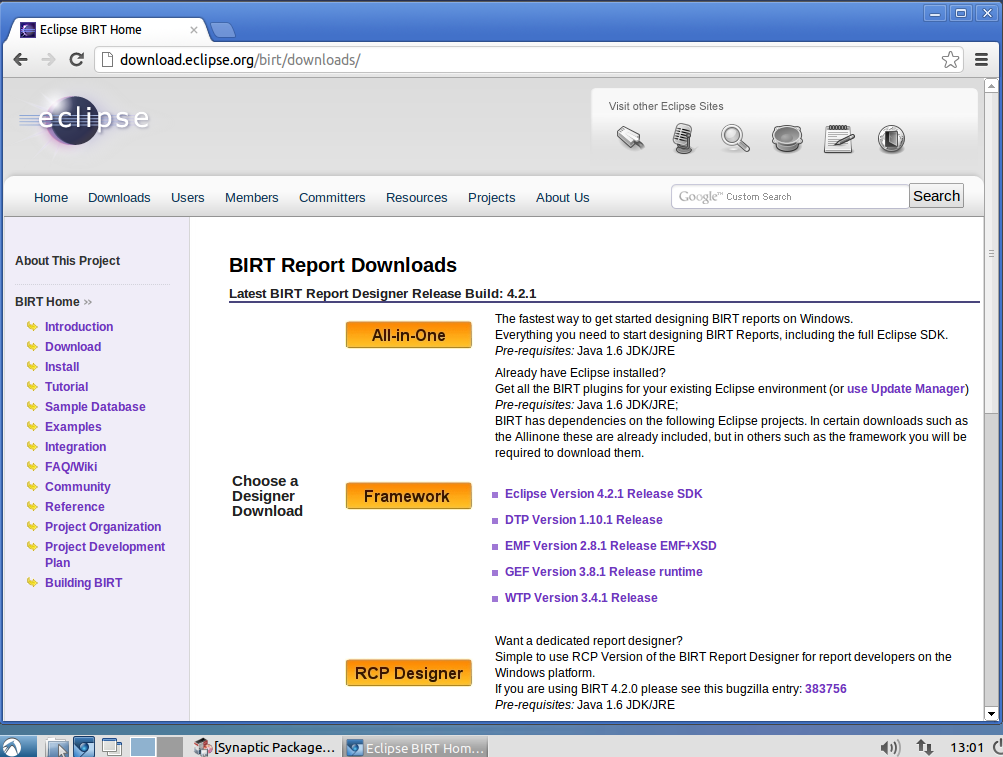
First you must download Eclipse IDE, you can download it from here:http://download.eclipse.org/birt/downloads/

Choose All in one
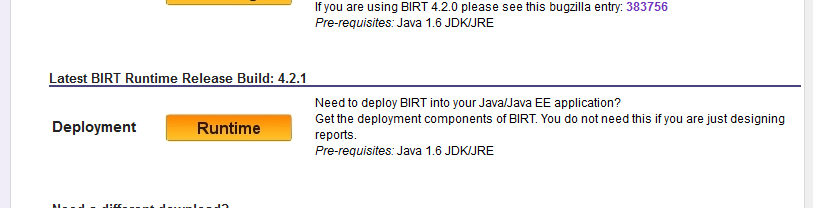
On the same page you can download BIRT runtime, runtime is important because apache and tomcat use birt runtime to run your reports like SSRS and it is like BIRT Report Viewer.
Here is link(I recommend you to go to main web page and download latest): http://www.eclipse.org/downloads/download.php?file=/birt/downloads/drops/R-R1-4_2_1-201209181113/birt-runtime-4_2_1.zip


Also download Latest BIRT Runtime


After you download package extract it somewhere on your disk so you can easily access it later.

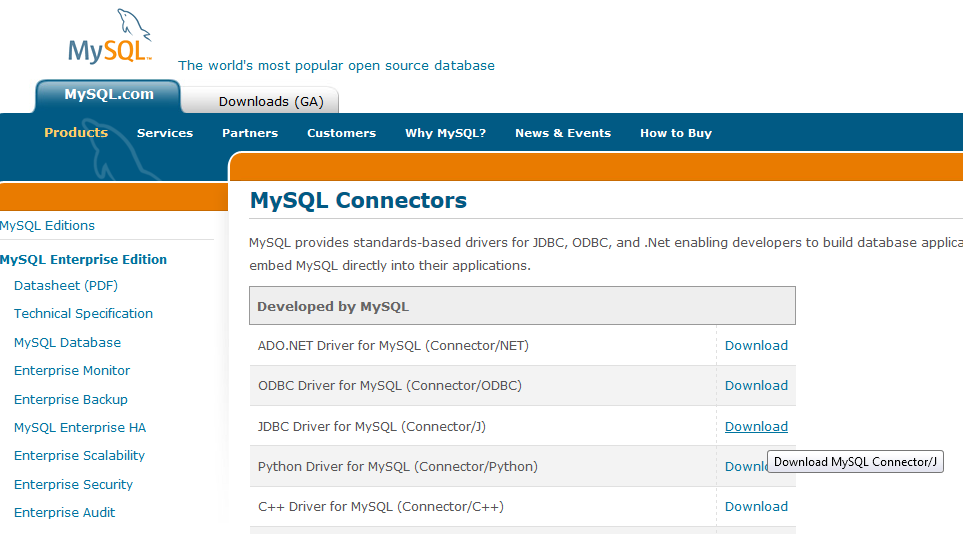
Now download MySQL JDBC driver for Eclipse and Java so you can make connection to MySql database. Here is link: https://www.mysql.com/downloads/connector/j/

Download JDBC MySQL driver


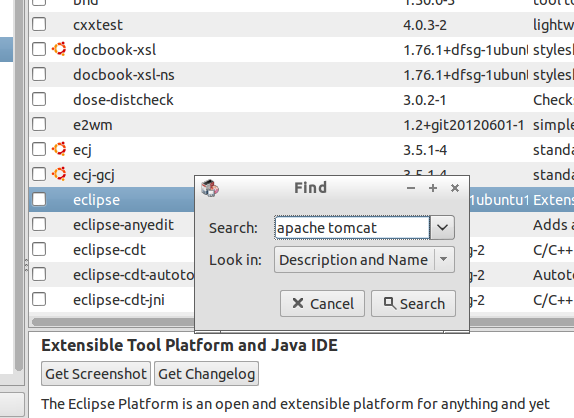
Now install apache2 and tomcat7 on your Linux distro. Here we use Ubuntu derivate Lubuntu 12.10. But the same thing is for Mint, Snow, Lubuntu, Kubuntu, Xubuntu, Ubvuntu Server and versions Ubuntu 10.10 , Ubuntu 10.04 LTS, Ubuntu, 11.04, Ubuntu 11.10, Ubuntu 12.04, Ubuntu 12.10....

Installing in Synaptic


When you finished installing apache and tomcat you must configure it.
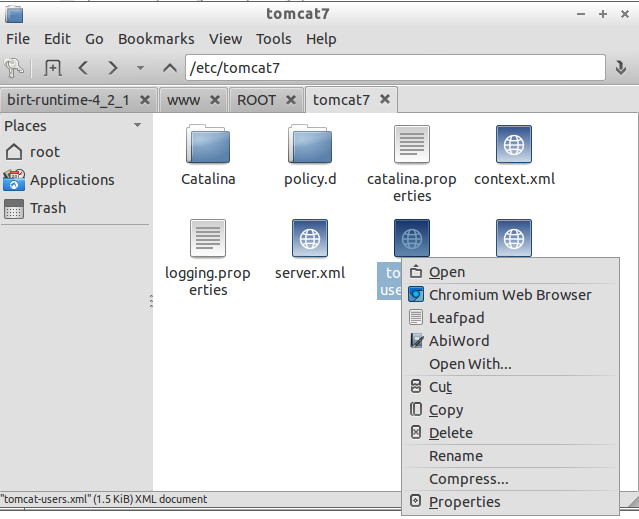
Open /etc/tomcat7 folder and open file tomcat-users.xml with root permisions.


Open it in some text editor, remmember that you must be root to edit this file!
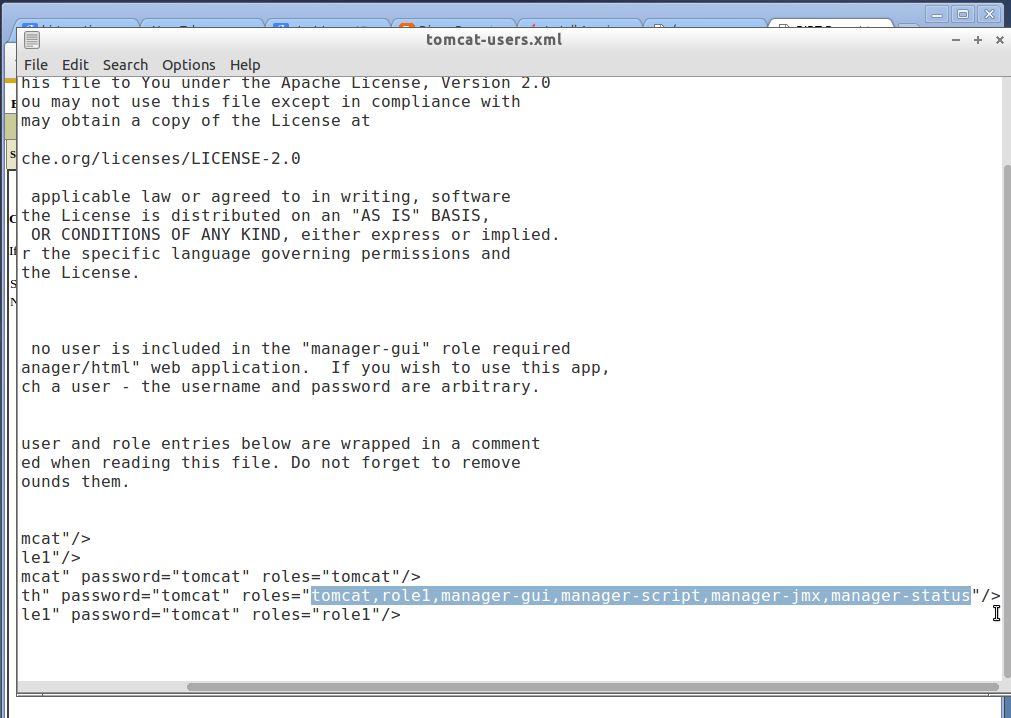
Uncomment lines on botton and add selected roles to your user.
In file tomcat-users.xml go to bottom and you will see default users config commented. Uncoment it , add your users and add roles to your admin user. Add this roles: manager-gui, manager-script, manager-jmx, manager-status.

Then restart tomcat. Enter command: sudo service tomcat7 restart


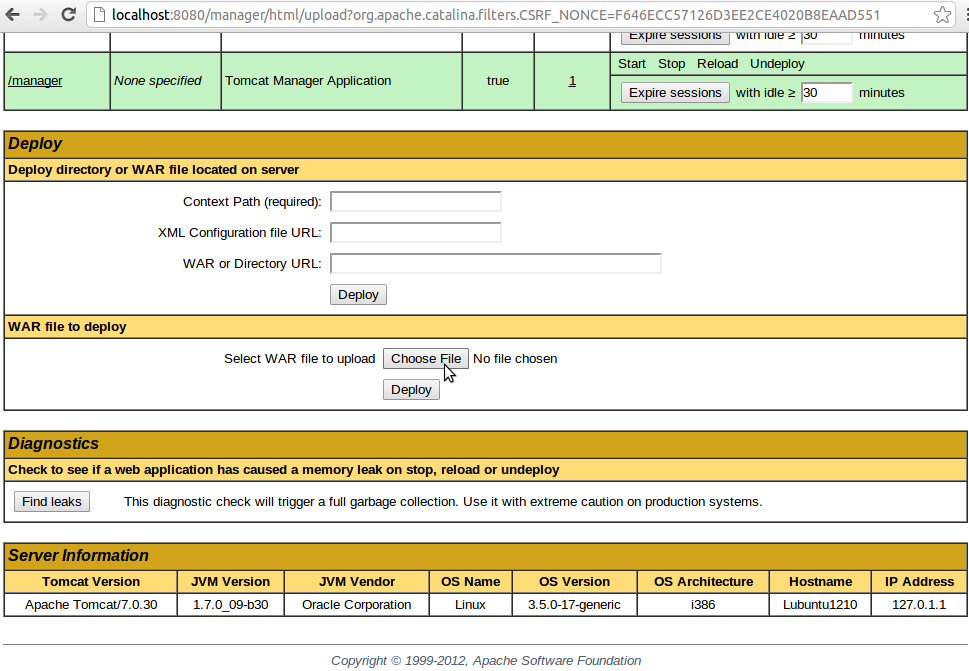
Now go to http://localhost:8080/manager/html and enter password you entered in tomcat-users.xml file. DON'T enter localhost instead localhost:8080 because tomcat runs only on localhost:8080. You can change that later of course but that is default. 

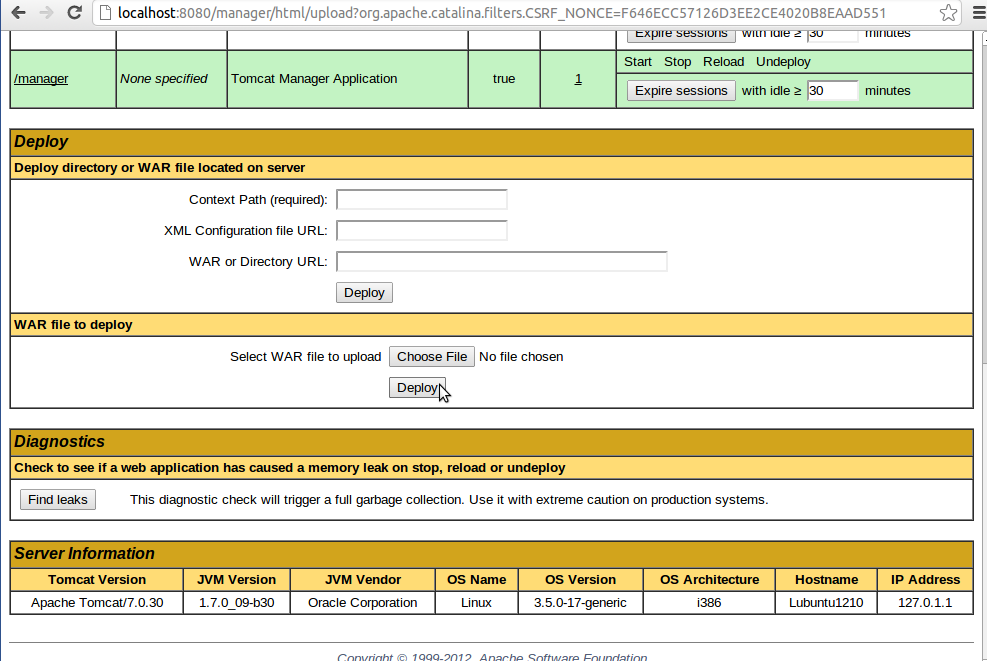
Click "Choose File"

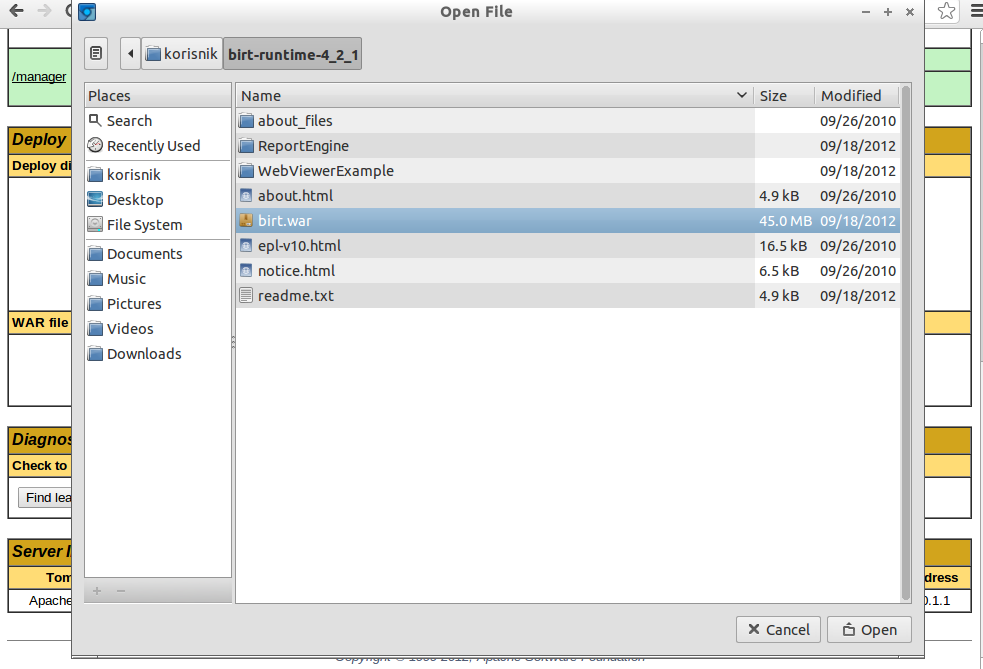
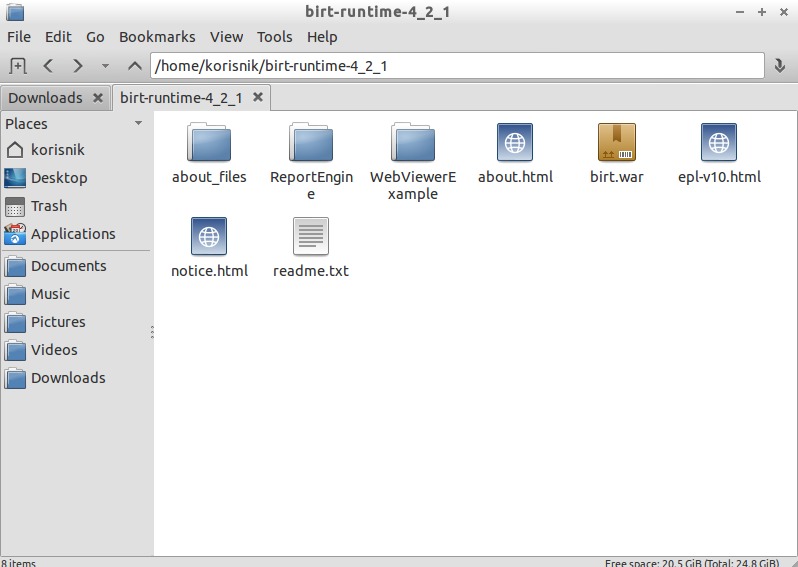
Choose birt.war in folder of BIRT runtime
Then click "Deploy" to deploy BIRT Viewer nad make it active.


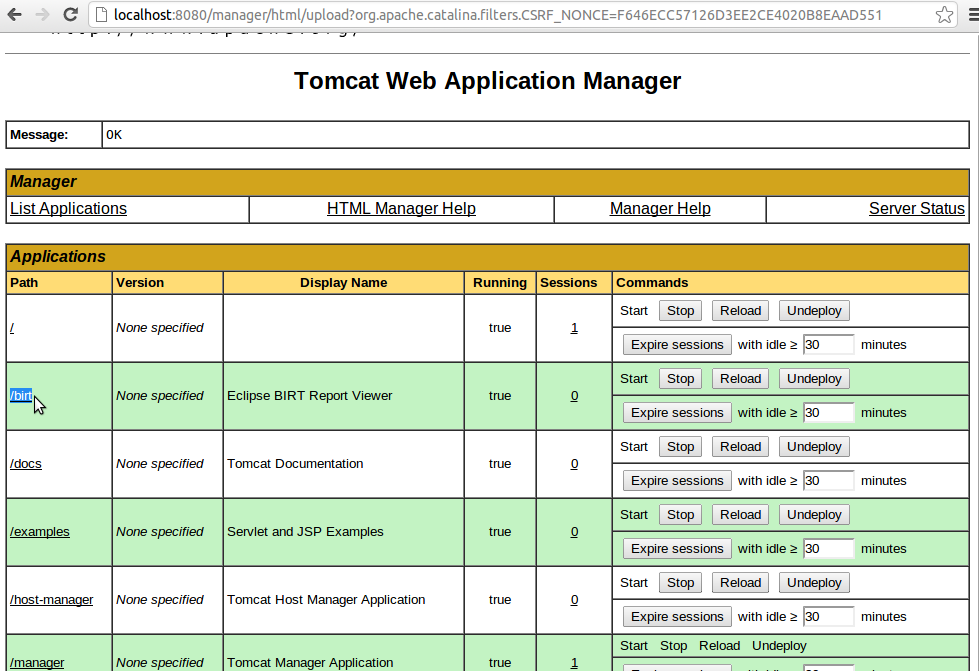
You can see BIRT installed when you refresh localhost:8080/manager/html

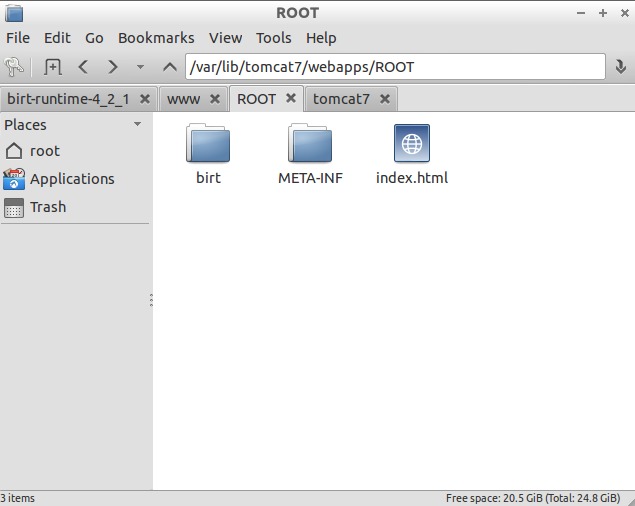
Copy WebViewerExample to /var/lib/tomcat7/webapps/ROOT

When you copy WebViewerExample to /var/lib/tomcat7/webapps/ROOT, RENAME folder  to birt.


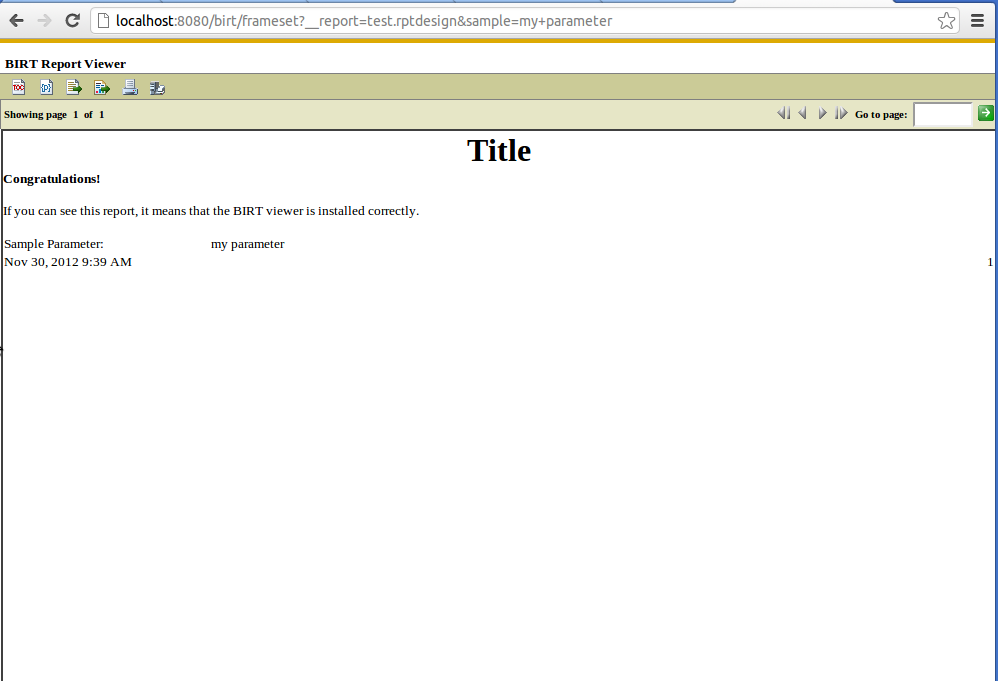
Now open http://localhost:8080/birt and then click View Example. It should display you something like this:
BIRT Report Example


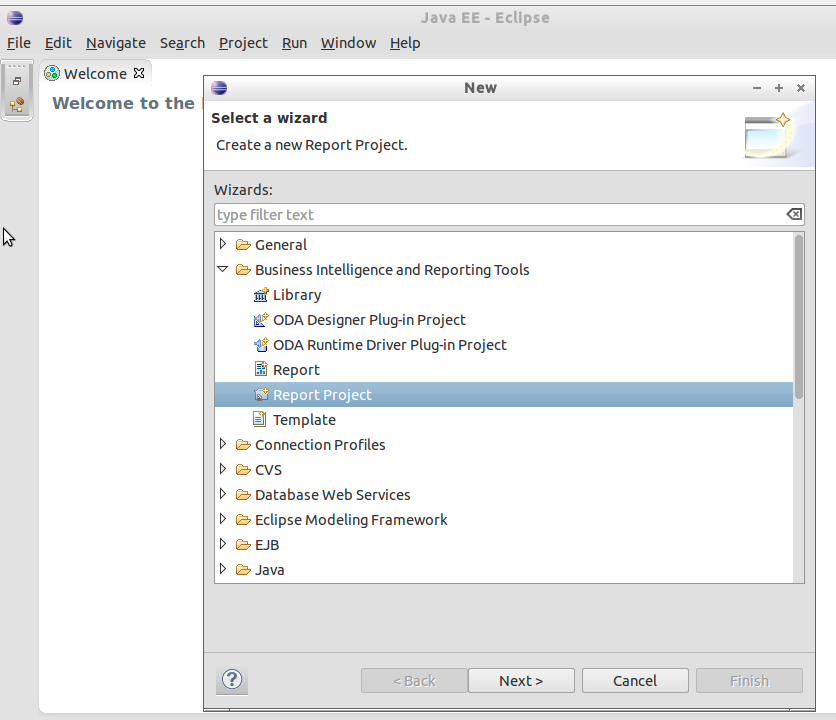
Now open Eclipse from the location where you extracted it, you don't have to install it , just run the file eclipse. After that Go to File-> New->Other...


Choose Bussines Intelligence and Reporting Tools , and then Report Project


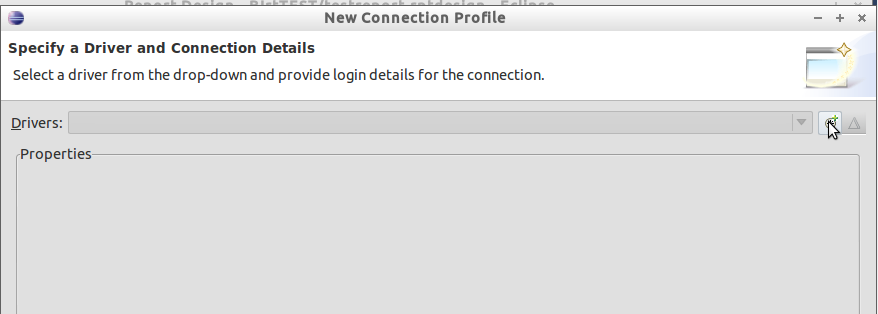
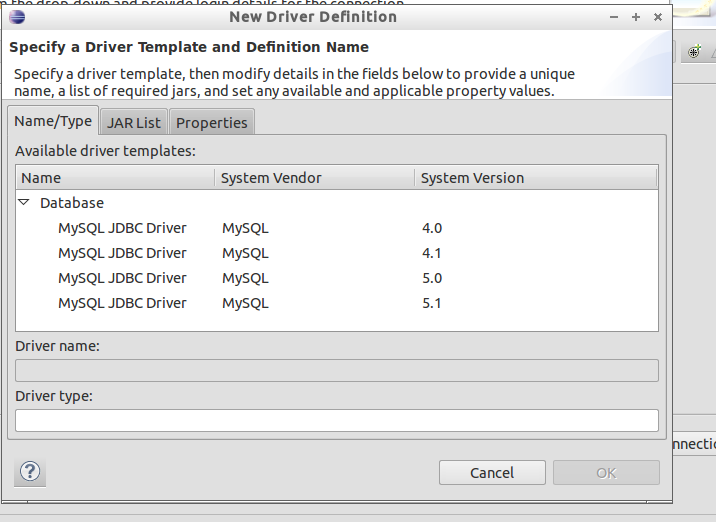
Click on button in right upper corner

Choose MySQL JDBC Driver Version 5.1
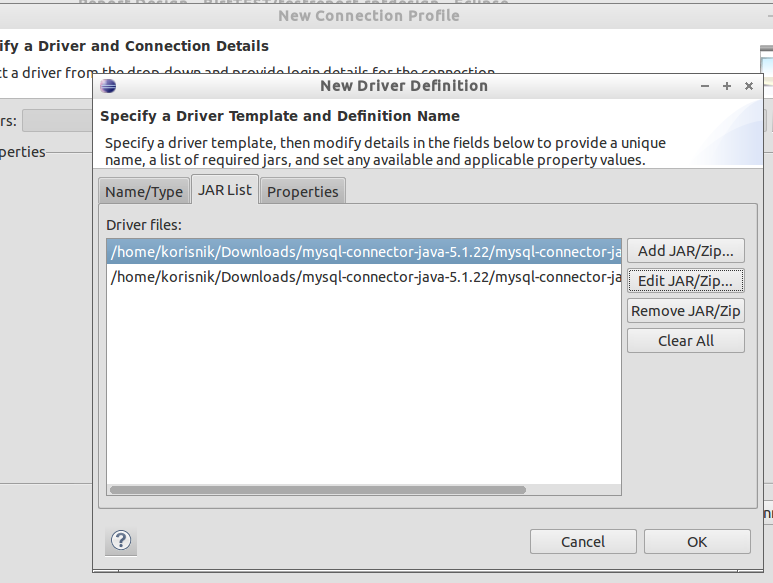
Click "Edit JAR/Zip"

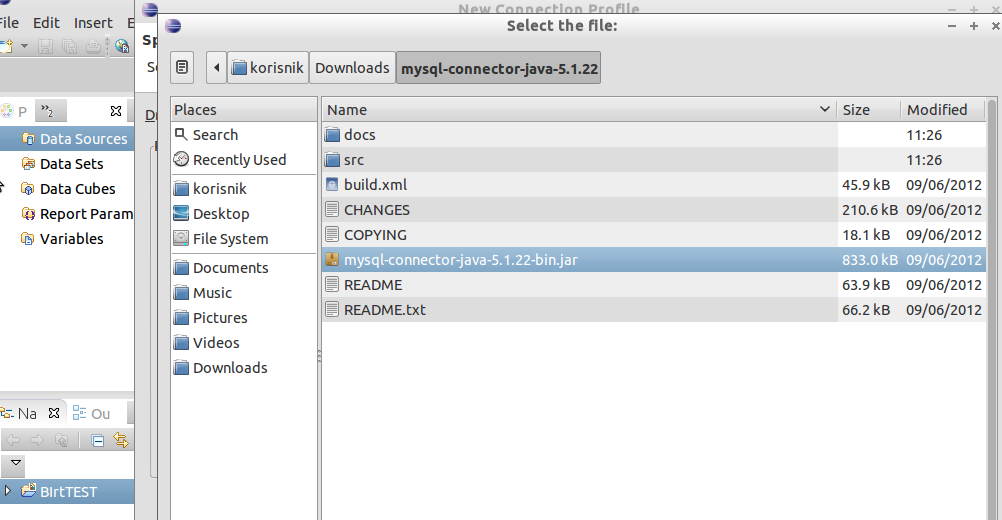
Choose mysql-connector-java you downloaded and extracted previously at begining of this tutorial


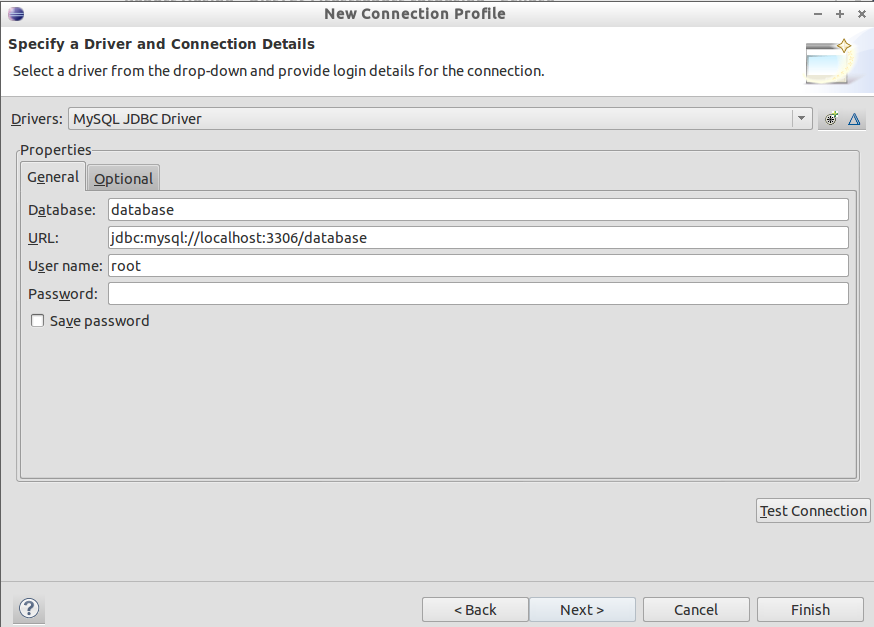
Set connection string to database


.... now design report and enjoy :)

Install Openfire chat server communicator on Linux Ubuntu 12.04 or 12.10

If you need LAN communicator or intern communicator on which you can connect from internet, on which you can edit groups, rooms, users ... everything you need to do with instant messaging protocol... you should try openfire.
Her is full tutorial how to install/setup openfire on ubuntu 12.04. or 12.10 Tutorial is needed because openfire non-opendsource  java runtime , and that java runtime you can't install without some tweaks.

For example I installed Ubuntu 12.04 LTS Server in VirtualBox. I choose all default options, and I didn't install any server feature, you don't need it. We will install all by entering commands in command line / terminal. Only thing you need is java, which we will install later.

This is my fresh installed Ubuntu 12.04 LTS Server

Now we will download script which will enable us to install java.
You can download script from HERE.
When you download it , extract it with syntax: tar -xzvf filename.tar.gz

You will get this:
Content of sript which will enable us to instal sun java.
Then enter command: sudo bash oab-java6.sh
And it will start working... it will tako some time...
Script is installing

When it is done you can install sun java: apt-get install sun-java6-jdk

After installing is done you can check your java version: java -version

After this you can install openfire program.
First download openfire:  wget http://download.igniterealtime.org/openfire/openfire_3.7.1_all.deb

And after downloading install it: dpkg -i openfire_3.7.1_all.deb


After this step you can access openfire server by web page, enter(change IP to your server IP) in browser: http:\\192.168.1.30:9090

If you see this it means that openfire is sucesfully instaled.


 Openfire have intern database which you can use for data storage of openfire data but it can bee slow after some time, so you can install mysql and connect openfire to mysql, enter commands:
#mysql -u root -p
mysql > CREATE DATABASE openfire;
mysql > quit;


And select "Standard Database Connection" on Databse Settings page, I choose Embedded database beacuse I have already some data in it.


 And after some few steps you are ready to use openfire!

UPDATE: If you have problems with low memory in Openfire and if it stops frequently you should do those steps: http://linuxibos.blogspot.com/2013/02/openfire-chat-server-out-of-memory.html

Printers and Linux - How to find drivers, install, setup

If printer is not working , and you need it, your system is almost unusable.
Because that we will now explain you how to setup ALL of printers you could have in your life. 

Content:


1.Setup CUPS
2.Install Linux printer on Windows
3.Install Linux printer drivers
4.Linux printers tips and tricks
5.What to do when there is no Linux printer support


Firstly, Linux supports natively most of printers. If you're buying new printer ask for Linux support, or just buy HP printer :), BEST support for Linux have HP printers, they have a lot of programs to configure and maintain printers. Also we recommend Lexmark and Xerox. If you have some Xerox printer and it is not working please go to Xerox web page and try to download driver, if you are unable to do that try driver for some other xerox printer with similar characteristics. We tried a lot of xerox printer, they all works , but none of them was working with native driver. KONICA MINOLTA is the worst one, they didn't have any support for Linux. But we have solution for that :) . Epson printers are quite well, we didn't test a lot of them but everyone we tested worked well after some tweaks. I tested all this on Ubuntu 11.04 , Ubuntu 12.04 , Ubuntu 12.10 and its derivates like Kubuntu, Lubuntu, Zorin , Mint ...

1.Setup CUPS


The fisrt thing you must have in your distro for better printer support is CUPS. Today almost all distros come with it preinstalled. And that mean that every computer which have CUPS behave like printer server. What that mean to you? A lot of GOOD things.

When you enter in your browser IP address of your Linux computer and add port 631 for example: http://192.168.1.7:631 will be open web page of CUPS where you can configure printer server.

Start page of CUPS server.You can open it from any computer in your LAN.
 If you add sufix "admin" on adress for example: http://192.168.1.7:631/admin you will get this:
Here you can setup main setting of CUPS. If you select same settings showed on picture you printer will be seen on on computers.

Depending on your setting computer around you will see your printer and you will see theirs printers. It is simple. When you configure it click on "Printers" or add sufix "printers" on address and you will get list of accessible printers.


2.Install Linux printer on Windows


If you have some Windows computer in LAN you can easily add Linux printer on Windows by adding http URL, just copy url of printer from page in upper picture and new network printer:
Add printer URL, then choose driver..adn NEXT,NEXT...FINISH


3.Install Linux printer drivers


 Now lets go install Linux printers.

First, try to install printer with drivers which  comes with Linux distribution, if they don't work then try to find PPD driver on the internet. Here is some pages to find PPD:
Drivers for most printers
HP
Kyocera
Xerox
Most Linux drivers and install manuals
Ubuntu guide to printers

PPD file tels Linux what features printer have and how to use it. It is simple tekst file which can be easily created if you know how to do it... here is manual how to create PPD.
When you find PPD file then you have  to install it:

Run the system-config-printer python script. You can do it by starting icon "Printing" in Setting on your system menu  or you can type in console system-config-printer , or type ALT-F2 and type system-config-printer.
Click "Add". Bellow is list of installed local or shared printers.
Choose network or local printer, or enter url, ip... to find it.
When you click shared printer, IP and port will appear on the right screen.Click "Forward" then.
If you first time see this window click "Select printer from database" and select it, and if you didn' succeded click "Provide PPD file"  and click on bellow button labeled "(None)".Click "Forward" after next step.

Choose your PPD driver (On picture is virtual driver, which will NOT work,here is just for example)

Enter the name of printer. You can enter everything.
After this you can click "Properties" on printer , and click "Print Test Page" to see is it working.

Most printer will be succesfully installed with upper instructions, but if it still doesn't work continue reading.


4.Linux printers tips and tricks


Here are some tweaks for some printers to get it working:

HP color Laser Jet 4650 needs to be installed by second driver in list because first(which is recommended by system) works but everything you print it prints three times... you want to print two pages...it print out six pages. Choosing second driver solves this problem.
Xerox workcenter 3220 must be installed with driver from Xerox webpage.
Xerox Phaser 3200MFP  works with "Generic PostScript Printer Foomatic/Postscript" driver (Second on recommended list)
Xerox workcenter PE220 will work with driver Xerox PE144e
Xerox workcenter PE120 will work with driver Xerox PE144e
EPSON LQ-680 will work with 24-pin driver , you must set 180DPI to print properly
EPSON LQ-690 will work with EPSON 570+ driver , you must set 180DPI to print properly
If  you connecting EPSON printer with LPT-USB adapter it will NOT work properly, it will behave CRAZY. You must use LPT-LPT or USB-USB cabel. This one takes week of my work to configure it...

UPDATE: We found driver for Linux which works on almost ALL PRINTERS including KONICA MINOLTA, XEROX, LEXMARK, EPSON..., read more here: http://linuxibos.blogspot.com/2013/01/driver-that-works-on-allmost-all.html 

5.What to do when there is no Linux printer support


If you have KONICA MINOLTA printer or some other printer which don't work you must create Printer server with Windows. It is enough to have only one XP or Win7 machine in whole company. You can connect hundred printers on this printer server. BUT Microsoft printer server which comes with Windows Server CANNOT work with Linux. You must do some configuration tweaks. We worked very hard to solve this problem. After days and days we created our custom printer server in C# which runs on one Windows XP. On Windows XP machine you must install drivers for printers, and start printer server. That is allmost all what you need to do.... This server enables you to print from Linux to any printer WITHOUT LINUX DRIVERS.

If you want to go throught all process alone here is link:
HOWTO - Print to a windows printer from linux WITHOUT needing any linux printer drivers_PPDs

To run printer guided by upper link you must install ghostscript to manage printers and python to automate whole process.

If you want to try our solution you can go to sourceforge to download, you can also contribute project and create your own code.

You can download printer server on this link: https://sourceforge.net/projects/nolindrivers/files/latest/download?source=files 

Full tutorial for installing our printer server is here.
If you have problems with installing our custom printer server named NoLinDriver printer server leave comment here, and we will try to explain it better.

I think that this post covers all your printer problems, if someone have problems with some of these please tell me that , and leave comment :)

How to open/save LibreOffice documents on Samba network

When users have to use some shared Windows folder on Linux you can easily access and open it automaticly with samba (Which comes preinstallled on most distros) , but when you open some files in LibreOffice or OpenOffice programs like Calc and Writer, and when you click "Save" nothing will happend, and if you click close, you will lose your changes in that file. When you open it again it will be unchanged.  If you want to recover it, click "Save as" and it will open temp folder in which it saves changes. Copy folder name and go to that folder on your folder explorer (Nautilus(GNOME), Dolphin(KDE), PCmanFM(LXDE), Thunar(XFCE)...) and you will find all your lost documents.

I searched for solution all over the web and find several solutions and none of them are wizard-like. You must do it by editing some config files.
 I will show you now solution that will fix all problems  caused by accessing samba resources, read-only permisions ....

Also this will solve the problem of Mapping network drivers in Linux , you can do it in several ways but this is the best for ordinary user because when you setup it once it will stay forever and user will never be in situation to enter samba user password, or to map it again... it will just work (I hope so :))

The solution is to mount your network drive on some folder.First create that folder:
mkdir /media/mappedfolder

Then enter this command to test if it working:

sudo mount -t cifs -o username= myusername@domain, password=mypassord,file_mode=0777, dir_mode=0777 //10.1.0.120/sharedfolder  /media/mappedfolder

Also if you use freenas or something similar, and if you use guest account you can easily mount it like this command:
sudo mount -t cifs  //10.102.10.4/userdata  /media/userdata

You must use parameter ,file_mode=0777, dir_mode=0777 to have read-write permission to all users on your computer .
Change myusername@domain to your username and domain, and change mypassord to your password.
Change //10.1.0.120/sharedfolder to your shared folder. You don't need to use smb:/ prefix because.
If you don't using ubuntu you can delete "sudo" word from command, and you must enter the root console.

If everything works then open /etc/ftab with root privilegies and add foolowing(Change it with your data): 
//10.1.0.120/sharedfolder /media/mappedfolder cifs username=yourusername, password=yourpassword, file_mode=0777,dir_mode=0777

And from now every time you start computer this will run and this folder will be mounted automatically.

If something is worng maybe you don't have installed all prerequisities. You must install samba, smbclient, cifs-utils (most people missing just this one) and it will work I hope so.

UPDATE: You probably not using nautilus file manager when you have those problems. We found out that all problems about accessing disk from LibreOffice or other programs are solved when you use nautilus to opet it. So if you don't using install it and try this. If it works on your computer you can make it default easily.

Change TeamViewer Client ID on Cloned Linux machine

If you have remastered Linux with included TeamViewer or if you cloned your Linux distribution and all programs and setting you will be faced with problem that all your cloned, preinstalled machines will have the same ClientID number.

You can solve this easily by removing teamviewer settings.
Open terminal and enter this command: rm -r ~/.teamviewer

It will delete all teamviewer setting , but they will be back after you start teamviewer, and there will be new ClientID. Sometimes you must wait several minutes to gain new ID number and password.

Access internet while OpenVPN is running on Linux


 If you have configured OpenVPN on your Linux machine , and when you run it , internet connection gone, this is solution.
I have this problem on Ubuntu, Lubuntu and Kubuntu 12.04. Internet works on Windows XP, / and most Linux distributions.

To connect on internet while running OpenVPN do this:
 Before you start you must dissconect OpenVPN.
1. Press ALT-F2
2. Enter this command and press ENTER: nm-connection-editor
Window on bottom picture will appear:


3.Click VPN, choose your VPN connection and click Edit
 Then this window will open:


3.Click IPv4 Settings, and then click Routes...
Then this window will open:

Edit routes , click on option "Use this connection for resource  on its network"

4.Click "Use this connection for resource  on its network".
5.Click "OK", and then "Save".

Now connect to OpenVPN and try to open some web page to test connection. It should work.
If you expirience loosing network connection try enabling and disabling it, and then again enabling.